Basic HTML syntax
In this article, we cover the absolute basics of HTML including terminology, syntax, and structure. Along the way, you'll complete some interactive challenges to become familiar with writing basic HTML.
| Prerequisites: | Basic software installed, and basic knowledge of working with files. |
|---|---|
| Learning outcomes: |
|
What is HTML?
HTML (HyperText Markup Language) is a markup language that tells web browsers how to structure the web pages you visit. HTML consists of a series of elements, which you use to enclose, wrap, or mark up different parts of content to make it appear or act in a certain way. The enclosing tags can make content into a hyperlink to link to another page, italicize words, and so on. For example, consider the following line of text:
My cat is very grumpy
If we wanted the text to stand by itself, we could specify that it is a paragraph by enclosing it in paragraph (<p>) tags:
<p>My cat is very grumpy</p>
HTML lives inside text files called HTML documents, or just documents, with a .html file extension. Where previously we've talked about web pages, an HTML document contains the web page's content and specifies its structure.
The most common HTML file you'll encounter is index.html, which is generally used to contain a website's home page content. It's also common to see subfolders containing their own index.html files, so a website can have multiple index files in different places.
Note:
Tags in HTML are not case-sensitive. This means they can be written in uppercase or lowercase. For example, a <title> tag could be written as <title>, <TITLE>, <Title>, <TiTlE>, etc., and it will work. However, it is best practice to write all tags in lowercase for consistency and readability.
Anatomy of an HTML element
Let's further explore our paragraph element from the previous section:
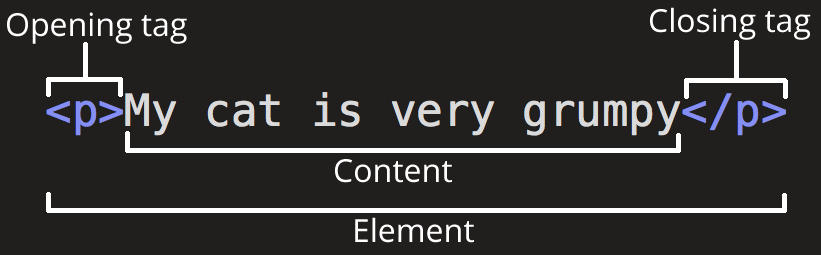
The anatomy of our element is:
- The opening tag: This consists of the name of the element (in this example, p for paragraph), wrapped in opening and closing angle brackets. This opening tag marks where the element begins or starts to take effect. In this example, it precedes the start of the paragraph text.
- The content: This is the content of the element. In this example, it is the paragraph text — "My cat is very grumpy".
- The closing tag: This is the same as the opening tag, except that it includes a forward slash before the element name. This marks where the element ends. Failing to include a closing tag is a common beginner error that can produce peculiar results.
The complete element consists of the opening tag, followed by the content, followed by the closing tag.
Note: Head on over to our learning partner Scrimba's HTML tags MDN learning partner scrim for an interactive explanation of HTML tags.
Creating your first HTML element
Let's give you some practice at writing your own HTML elements:
- Click "Play" in the code block below to edit the example in the MDN Playground.
- Wrap the line of text with the tags
<em>and</em>. To open the element, put the opening tag (<em>) at the start of the line. To close the element, put the closing tag (</em>) at the end of the line. Doing this should format the rendered text as italic text. - If you are feeling adventurous, try researching some more HTML elements and applying them to the text example.
If you make a mistake, you can clear your work using the Reset button in the MDN Playground. If you get really stuck, you can view the solution below the code block.
This is my text.
Click here to show the solution
Your finished line of HTML should look like this:
<em>This is my text.</em>
Nesting elements
Elements can be placed within other elements. This is called nesting. If we wanted to state that our cat is very grumpy, we could wrap the word very in a <strong> element, which gives the word strong(er) text formatting:
<p>My cat is <strong>very</strong> grumpy.</p>
In this code block, the text "My cat is very grumpy." is all defined as a paragraph. The word "very" is additionally defined as having strong importance.
There is a right and wrong way to do nesting. In the code block above, we open the <p> element first, then open the <strong> element. For proper nesting, we close the <strong> element first, then close the <p>.
The following is an example of the wrong way to do nesting:
<p>My cat is <strong>very grumpy.</p></strong>
The tags have to open and close so that they are inside or outside one another. Because the elements overlap in the previous code block, the browser has to guess at your intent. This kind of guessing can result in unexpected results.
Void elements
Not all elements follow the pattern of an opening tag, content, then a closing tag. Some elements consist of a single tag, which is typically used to insert/embed something in the document. Such elements are called void elements, which means "elements that cannot contain other HTML content".
For example, the <br> element inserts a line break into a line of text, which causes it to break onto multiple lines:
<p>
  This is a single paragraph, but we are going to <br />break it onto two lines.
</p>
This renders as follows:
Note:
In some HTML examples, you'll see a / added at the end of a void element's tag, for example <br />. This is valid syntax, however, it is optional.
Attributes
Elements can also have attributes. Attributes look like this:

Attributes contain extra information about the element that isn't part of its content. The class attribute provides an identifying name that can be used used to target the element with styles (CSS) or scripting information (JavaScript).
An attribute should have:
- A space between it and the element name. When an element has more than one attribute, the attributes should be separated by spaces too.
- The attribute name, followed by an equals sign (
=). - An attribute value, wrapped with opening and closing quote marks.
Adding attributes to an element
Now it's your turn again. In this section you are going to explore the <img> element, which is used to display an image on the page. The <img> element can take several attributes, including:
src: A required attribute that specifies the URL (web address) of the image. For example:src="https://mdn.github.io/shared-assets/images/examples/fx-nightly-512.png".alt: A required attribute that specifies a text description to describe the image to people who cannot see it. For example:alt="The Firefox Nightly icon".width: The width of the image in pixels. For example:width="300".height: The height of the image in pixels. For example:height="300".
Follow the steps below to complete the task:
- Click "Play" in the code block below to edit the example in the MDN Playground.
- Find your favorite image online, right click it, and press Copy Image Link/Address. Alternatively, copy the image URL above.
- Back in the MDN Playground, add the
srcattribute to the<img>element and set its value to the URL from Step 2. - Set the
altattribute to a suitable description of the image. - Set the
widthattribute to a value of say300so you can see the image a bit better inside the output panel. Adjust the value if needed.
If you make a mistake, you can clear your work using the Reset button in the MDN Playground. If you get really stuck, you can view the solution below the code block.
<img />
Click here to show the solution
Your finished HTML element should look something like this:
<img
  src="https://mdn.github.io/shared-assets/images/examples/fx-nightly-512.png"
  alt="A description of the image"
  width="300" />
Boolean attributes
Sometimes you will see HTML attributes written without values. These are called Boolean attributes. When a boolean attribute is written without a value, or with a value of some kind, its value is set to true. If an attribute is not included in an HTML tag, its value is set to false.
For example, consider the disabled attribute, which you can assign to form <input> elements to stop the user entering data into them. For example:
<label for="first-input">This input is disabled</label>
<input id="first-input" type="text" disabled="disabled" />
<br />
As shorthand, it is acceptable to write the disabled attribute without a value:
<label for="second-input">This input is also disabled</label>
<input id="second-input" type="text" disabled />
<br />
For reference, let's also provide a non-disabled <input> element so you can compare and contrast (note how the disabled inputs are somewhat greyed out in the below rendering):
<label for="third-input">This input isn't disabled; you can type into it</label>
<input id="third-input" type="text" />
The above HTML snippets render like so:
Note:
The <label> elements included in the above code provide a way to associate descriptive labels with form elements. We included them because it is a best practice, and to provide some separation between the form inputs.
Omitting quotes around attribute values
It is OK to omit the quotes from around attribute values in certain circumstances, but it can break your markup in other circumstances, so we would advise you to always include the quote marks. Let's explore why.
The element in the code snippet below, <a>, is called an anchor. Anchors enclose text and turn them into links. The href attribute specifies the URL the link points to. You can omit the quotes around the href attribute value shown below without any negative consequences, because it has no spaces in it:
<a href=https://www.mozilla.org/>favorite website</a>
However, you soon run into problems when omitting quotes from attribute values with spaces. Consider the title attribute shown below, which provides a description of the linked page ("The Mozilla homepage") that should appear as a tooltip when the link is hovered over by a mouse pointer.
<a href=https://www.mozilla.org/ title=The Mozilla homepage>favorite website</a>
However, because quotes are not included around the title attribute value, the browser interprets it as three attributes: a title attribute with the value The, and two Boolean attributes — Mozilla and homepage. Obviously, this is not what we intended! If you're using a device with a mouse pointer, you can try hovering over the link to view the title tooltip (it will give you "The" rather than the intended "The Mozilla homepage").
Always include quotes around attribute values. It avoids errors and unintended behavior, and results in more readable code.
Single or double quotes?
In this article, we have wrapped all our attribute values in double quotes. However, you might see single quotes used in some HTML code. This is a matter of style. You can feel free to choose which one you prefer. Both of these lines are equivalent:
<a href='https://www.example.com'>A link to my example.</a>

<a href="https://www.example.com">A link to my example.</a>
Make sure you don't mix single quotes and double quotes. The below example mixes quotes, which will lead to errors because as far as the browser is concerned, the href attribute value has not been finished:
<a href="https://www.example.com'>A link to my example.</a>
If you use one type of quote, you can include the other type of quote inside your attribute values. This works fine:
<a href="https://www.example.com" title="Isn't this fun?">
  A link to my example.
</a>
To use quote marks inside other quote marks of the same type (single quote or double quote), you can use character references. For example, this will break:
<a href="https://www.example.com" title="An "interesting" reference">A link to my example.</a>
Instead, you need to do this:
<a href="https://www.example.com" title="An "interesting" reference">A link to my example.</a>
Anatomy of an HTML document
Individual HTML elements aren't very useful on their own. Next, let's examine how individual elements combine to form an entire HTML page.
The following example is a very simple complete webpage:
<!doctype html>
<html lang="en-US">
  <head>
    <meta charset="utf-8" />
    <title>My test page</title>
  </head>
  <body>
    <p>This is my page</p>
  </body>
</html>
The parts of this example are as follows:
-
<!doctype html>: The doctype. When HTML was young (1991-1992), doctypes were meant to act as links to a set of rules that the HTML page had to follow to be considered good HTML. Doctypes used to look something like this:html<!doctype html PUBLIC "-//W3C//DTD XHTML 1.0 Transitional//EN" "http://www.w3.org/TR/xhtml1/DTD/xhtml1-transitional.dtd">In modern times, the doctype is a historical artifact that needs to be included for everything else to work right.
<!doctype html>is the shortest string of characters that counts as a valid doctype, and it should be included at the top of all webpages. That is all you need to know! -
<html></html>: The<html>element. This element wraps all the content on the page. It is sometimes known as the root element. -
<head></head>: The<head>element. This element acts as a container for information about the page that isn't part of the content that users will see. This can include keywords and a page description to be shown in search results, CSS to style content, character set declarations, and more. You will learn more about the head of the page in the next article. -
<meta charset="utf-8">: A<meta>element. This element represents metadata that describes the page. Thecharsetattribute specifies the character encoding your document will use. UTF-8 includes most characters from the vast majority of human written languages, which means the page will be able to display different languages successfully. There is no reason not to set this, and it can help avoid some problems later. -
<title></title>: The<title>element. This sets the title of the page, which is the title that appears in the browser tab the page is loaded in. The page title is also used to describe the page when it is bookmarked. -
<body></body>: The<body>element. This contains all the content that displays on the page, including text, images, videos, games, playable audio tracks, etc.
Adding some features to an HTML document
At this point, we want you to practice writing some slightly more substantial HTML content. To do this, you've got a couple of options — you can create the HTML on your local computer, or use the MDN Playground like in the previous examples.
Example setup
- To do it on your local machine:
- Copy the HTML page example listed in the previous section and paste it into a new file in your code editor. You can also find this basic HTML template on our GitHub repo.
- Make the changes to the page outlined in the instructions.
- Save the file as
index.htmlthen load it in a new browser tab to see the results.
- To do it in the MDN Playground, click "Play" in the output panel below to edit the example, then follow the instructions. If you make a mistake, you can clear your work using the Reset button in the MDN Playground.
Example instructions
Here are the instructions to follow:
- Just below the opening tag of the
<body>element, add a main title for the document. This should be wrapped by<h1></h1>opening and closing tags. - Edit the paragraph content to include text about a topic that you find interesting.
- Make important words stand out in bold by wrapping them inside a
<strong>element. - Add two links to your paragraph. This is achieved using the
<a>element. - Add an image to your document below the paragraph as explained earlier. If it is too big to see, add a
widthattribute to shrink it down.
If you get really stuck, you can view a potential solution here:
Click here to show the solution
The contents of your finished HTML element body should look something like this:
<h1>Some music</h1>
<p>
  I really enjoy <strong>playing the drums</strong>. One of my favorite drummers
  is Neal Peart, who used to play in the band
  <a href="https://en.wikipedia.org/wiki/Rush_%28band%29">Rush</a>. My favorite
  Rush album is currently
  <a href="https://www.deezer.com/album/942295">Moving Pictures</a>.
</p>
<img
  src="https://www.cygnus-x1.net/links/rush/images/albums/sectors/sector2-movingpictures-cover-s.jpg"
  alt="Rush Moving Pictures album cover"
  width="300" />
Whitespace in HTML
In previous examples, we've included lot of whitespace in the code. This is completely optional, and included mainly to make the code more readable. For example, these two code snippets are equivalent:
<p id="noWhitespace">Dogs are silly.</p>

<p id="whitespace">Dogs
    are
        silly.</p>
They both render exactly the same:
No matter how much whitespace you use inside HTML element content, the HTML parser reduces each sequence of whitespace to a single space when rendering the code.
It is up to you to choose a preferred code formatting style. It is common to give each nested element two spaces of indentation more than the one it is sitting inside; this is the style we use on MDN.
For example:
<section>
  <div>
    <p>A paragraph of content.</p>
  </div>
</section>
Character references: including special characters in HTML
In HTML, the characters <, >, ", ', and & are special characters. They are parts of the HTML syntax itself. So how do you include these special characters in your text? For example, how can you use a literal ampersand or less-than sign in your content without it being interpreted as code?
You do this with character references. These are special codes that represent characters, to be used in these exact circumstances. Each character reference starts with an ampersand (&), and ends with a semicolon (;).
| Literal character | Character reference equivalent |
|---|---|
| < | < |
| > | > |
| " | " |
| ' | ' |
| & | & |
Character references are fairly easily remembered because the text they use is an abbreviation of the character name — for example "lt" = "less than", "quot" = "quotation", and "amp" = "ampersand". To learn more about entity references, see List of XML and HTML character entity references (Wikipedia).
In the example below, there are two paragraphs:
<p>In HTML, you define a paragraph using the <p> element.</p>
<p>In HTML, you define a paragraph using the <p> element.</p>
This renders as follows:
You can see that the first paragraph has gone wrong, because the browser has interpreted the second instance of <p> as starting a new paragraph. The second paragraph renders fine because the angle brackets of the content "<p>" are represented by character references.
Note: You don't need to use entity references for any other symbols, as modern browsers will handle the actual symbols just fine as long as your HTML's character encoding is set to UTF-8.
HTML comments
HTML has a mechanism to write comments in the code. Browsers ignore comments, therefore they are invisible to the user. The purpose of comments is to allow you to include notes in the code to explain how it works. This is very useful if you return to a code base after being away for long enough that you don't remember it, or if someone else starts working on it that has never seen it before.
To write an HTML comment, wrap it in the special markers <!-- and -->, as shown below:
<p>I'm not inside a comment</p>

<!-- <p>I am!</p> -->
This code renders as follows:
Only the first paragraph is displayed in the live output; the second line is not rendered because it is an HTML comment.
Summary
You made it to the end of the article! We hope you enjoyed your tour of the basics of HTML.
At this point, you should understand what HTML looks like, and how it works at a basic level. You should also be able to write a few elements and attributes. The subsequent articles of this module go further on some of the topics introduced here, as well as presenting additional topics.
Note: As you start to learn more about HTML, consider also learning the basics of CSS, the language used to style web pages (for example, changing colors, fonts, and spacing). HTML and CSS are used together on most web pages, and learning them at the same time can be effective.